
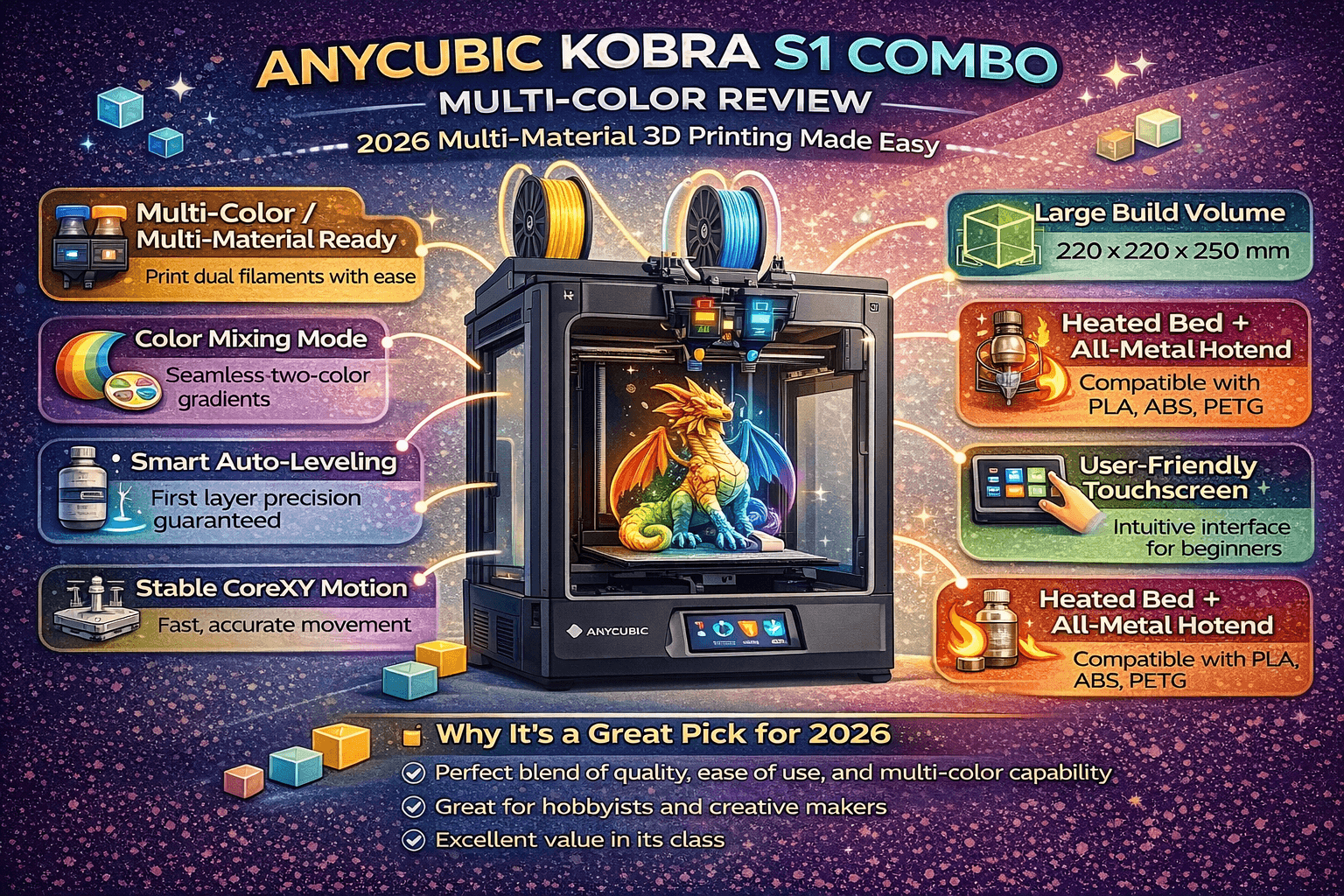
Multi-material 3D printing has long been the domain of high-end machines with four-figure price tags. The Bambu Lab X1 and P1S deliver excellent results, but at $1,049 and up for the combo, they remain out of reach for many makers. Enter the
Anycubic Kobra S1 Combo, a fully enclosed CoreXY printer that brings 4- or 8-color printing to the sub-$700 market.
At $499 for the base printer with ACE Pro, or $749 for the 8-color configuration, this machine is positioned as one of the most affordable paths to multi-material FFF printing.[1]
After analyzing expert reviews and technical specifications, the Kobra S1 Combo emerges as a compelling, if imperfect, option for makers who want vibrant multi-color prints without breaking the bank.[2]
Quick Answers
Is the Anycubic Kobra S1 Combo worth buying in 2026?
Yes, if you’re looking for the most affordable entry into multi-color CoreXY printing. At $499–$749, it offers excellent value despite purge waste limitations.[3]
How many colors can it print at once?
Up to 4 colors with one ACE Pro unit, or 8 colors with two ACE Pro units (optional expansion).[4]
What’s the main downside?
Filament waste in multi-color mode. Purge towers and “poop” can consume significant material, and the slicer provides limited planning tools.[5]
Is it good for beginners?
Yes. Auto-leveling (LeviQ 3.0), fully enclosed design, and plug-and-play setup make it beginner-friendly, though multi-color workflow requires practice.[6]
How does it compare to Bambu Lab P1S?
The P1S offers better purge control and speed ($1,049), while the Kobra S1 is cheaper and includes built-in drying. For budget-conscious makers, the Kobra S1 wins on price.[7]
Quick Reference: Anycubic Kobra S1 Combo Specs
| Specification | Details |
|---|---|
| Print Technology | FFF (Fused Filament Fabrication) |
| Build Volume | 250 × 250 × 250 mm |
| Motion System | CoreXY |
| Extruder Type | Direct Drive |
| Nozzle | 0.4 mm (standard), optional 0.2 / 0.6 / 0.8 mm |
| Max Hotend Temp | 320°C |
| Max Bed Temp | 120°C |
| Build Surface | PEI double-sided spring steel |
| Print Speed | Recommended 300 mm/s, Max 600 mm/s |
| Max Acceleration | 20,000 mm/s² |
| Leveling System | LeviQ 3.0 Auto-leveling + Z-offset |
| Enclosure | Fully enclosed with polycarbonate door |
| Color Engine | ACE Pro (1 included, expandable to 2 for 8 colors) |
| Camera | Built-in HD (480p) |
| Connectivity | USB, Wi-Fi, LAN, Anycubic App |
| Noise Level | ≤46 dB (Standard), ≤44 dB (Quiet mode) |
| Weight | 18 kg (printer) + 4.6 kg (ACE Pro) |
| Footprint | 400 × 410 × 490 mm (printer) |
Design & Build Quality: A Compact CoreXY Contender
The Kobra S1 embraces the modern, fully enclosed CoreXY aesthetic, sporting polycarbonate panels instead of glass. This keeps weight down
(18 kg for the printer alone) while still providing good thermal stability for higher-temperature materials like ABS, ASA, and even polycarbonate.[8]
The integrated 4.3-inch touchscreen is a standout. Reviewers consistently praise responsiveness, and the screen tilts from vertical to horizontal for easier viewing.
The PEI-coated spring steel build plate is also a win: strong adhesion when hot, easy release when cool.[9]
Heads-up for tinkerers: Anycubic uses proprietary components (notably the hotend/nozzle system). Tool-free removal is convenient,
but you won’t have the same third-party swap freedom as standard nozzle ecosystems.[10]
The ACE Pro: Heart of the Multi-Color System
The “Combo” includes the ACE Pro (Anycubic Color Engine): a filament dryer + buffer with four spool slots that can sit on top of the printer (or beside it, especially if you add a second unit).[11]
Key ACE Pro features
- Active drying while printing (up to ~55°C) to keep moisture-sensitive filaments in better shape.
- Runout detection + auto-switching (when using the same material across spools).
- Entanglement detection to prevent common spool-related failures.
- RFID auto-detection for Anycubic-branded filament; third-party requires manual input.
Important limitation: TPU (95A) is generally better as single-color on the ACE path. Flexible filament and frequent switching don’t always play nicely.[12]
Performance: Speed and Quality in Balance
Print speed & acceleration
Anycubic advertises up to 600 mm/s and 20,000 mm/s² acceleration, but real-world use is more nuanced. In practice, PLA tends to be reliable in the 200–300 mm/s range with a tuned profile, while PETG benefits from slower speeds for cleaner output.
ABS performance is helped a lot by the enclosure, and the high hotend/bed temps open the door for polycarbonate with conservative settings.[13]
Print quality
First-layer consistency is a strength thanks to LeviQ 3.0 auto leveling and Z-offset control. Surface finish is solid for the price bracket,
and the motion system is stiff enough to keep ringing manageable at recommended speeds.[14]
Multi-Color Printing: The Good, The Bad, and The Ugly
The workflow
- Load filament spools into ACE Pro slots.
- Sync materials in Anycubic Slicer (RFID or manual assignment).
- Use “Color Painting” tools to assign colors to model regions.
- The printer purges at each change to reduce cross-contamination.
The purge problem
Multi-color is impressive, but filament waste can be extreme. Purge towers and “poop” add up fast, and the slicer experience can make it hard to predict usage before committing to a long job.
This is the biggest practical downside to budget multi-color systems.[15]
Mitigation strategies
- Fill the build plate to amortize purge overhead across more parts.
- Reduce the number of color swaps (group similar colors or simplify palettes).
- Decide early if you truly need 4–8 colors for the model.
When tuned correctly, transitions can be clean and overall print quality remains strong. You’re mainly paying the “purge tax.”[16]
Software & Slicer: Close, But Not Quite
Anycubic Slicer Next is built on an OrcaSlicer foundation, so the core slicing experience is familiar for experienced users. Integration with the camera and ACE Pro controls is a plus,
but purge management and visibility are still the areas where competitors feel more mature.[17]
Strengths
- Modern UI and solid core slicing performance
- Remote monitoring via app and camera integration
- Good “color painting” workflow once learned
Weaknesses
- Limited purge transparency and planning tools
- Some purge controls are awkward (often adjusted mid-print)
- ACE Pro loading can be fiddly on certain slots
Real-World Use: Does It Deliver?
Setup & first print
Setup is refreshingly simple: remove packing material, mount the ACE Pro hardware, run calibration (including leveling and motion tuning), and you’re printing.
The system is designed to be “appliance-like” rather than a weekend project.[18]
Noise level
With stated figures around 44–46 dB depending on mode, the Kobra S1 is notably quieter than many CoreXY competitors, making it easier to live with in a home or shared workspace.[19]
Reliability
Across reviewer testing, failure rates appear low for a first-generation machine in this category. Auto-leveling and enclosure stability reduce common pitfalls, and features like spaghetti detection and power-loss recovery act as safety nets.[20]
Material Compatibility
The 320°C hotend and 120°C bed open a wide material range. Multi-color performance depends on the material’s switching behavior and consistency through the ACE Pro system.[21]
| Material | Multi-Color? | Recommended Temp | Notes |
|---|---|---|---|
| PLA | Yes | 200–220°C / 60°C bed | Works great; higher speeds possible |
| PETG | Yes | 230–250°C / 70–80°C bed | Slower is cleaner; stringing control matters |
| TPU (95A) | No (best single-color) | 220–240°C / 60°C bed | Flexible filament can complicate switching |
| ABS | Yes | 240–260°C / 100–120°C bed | Enclosure helps a lot |
| ASA | Yes | 240–260°C / 100–110°C bed | UV-resistant alternative to ABS |
| Polycarbonate | Yes (advanced) | 270–295°C / 100–120°C bed | Dry filament + slower speeds recommended |
| Nylon | Unclear / varies | 240–260°C / 80–100°C bed | Moisture-sensitive; drying helps |
| PETG-CF | Yes | 240–260°C / 80–100°C bed | Enhanced strength; watch for wear |
Pros & Cons: Bottom Line Before You Buy
✅ Pros
- Outstanding value for a multi-color CoreXY at this price[22]
- Strong single-material quality comparable to pricier printers in many cases
- Built-in filament drying via ACE Pro improves consistency[23]
- Fully enclosed for ABS/ASA/PC stability
- Quiet operation for home-friendly use
- LeviQ 3.0 reduces leveling fuss dramatically
- Remote monitoring with camera + app ecosystem
- Expandable to 8 colors with a second ACE Pro
❌ Cons
- Extreme filament waste in multi-color mode[24]
- Purge planning limitations (hard to predict and optimize before printing)
- Two power supplies needed (ACE Pro uses its own outlet)
- Proprietary hotend limits third-party swaps and modding
- Multi-color prints can be very slow compared to single-color
- ACE Pro loading can be fiddly in some slots
- No active chamber heating (enclosure retains heat, but doesn’t add it)
Verdict: Who Is This Printer For?
The Anycubic Kobra S1 Combo is a pragmatic multi-material printer for budget-conscious makers who want vibrant prints without the complexity of DIY multi-material systems.
It’s excellent for single-material printing and surprisingly capable in multi-color, but the purge waste and slicer workflow are the main tradeoffs.[25]
You should buy the Kobra S1 Combo if:
- You want multi-color printing without paying $1,000+
- You mostly print PLA/PETG and occasionally ABS/ASA
- You value plug-and-play reliability and auto-leveling
- You’re okay trading more waste for a lower upfront price
- You want an enclosed machine with a built-in dryer workflow
Look elsewhere if:
- Multi-color waste is a dealbreaker
- You need advanced purge planning and visibility tools
- You want to heavily mod/tinker with hardware
- Maximum speed and mature multi-color workflow matter most
How It Stacks Up Against Competitors
| Printer | Price (Combo) | Max Colors | Print Speed | Purge Control | Active Dryer? |
|---|---|---|---|---|---|
| Anycubic Kobra S1 Combo | $499 / $749 (8-color) | 4 / 8 | 300 mm/s (rec.) | Limited | Yes (ACE Pro) |
| Bambu Lab P1S Combo | $1,049 | 4 | 500 mm/s (rec.) | Excellent | No (depends on AMS setup) |
| Creality K2 Plus Combo | $1,649 | 4 | 600 mm/s (rec.) | Very good | No |
| Bambu Lab A1 Mini Combo | $549 | 4 | 500 mm/s (rec.) | Excellent | No |
| QIDI PLUS4 | ~$2,000? | 4 | 500 mm/s (rec.) | Good | Yes (system-dependent) |
The Kobra S1 occupies a unique niche: affordable CoreXY with integrated drying, at the cost of purge refinement. If you can live with the waste, you get a big slice of the multi-color experience at a much lower entry price.[26]
Frequently Asked Questions
Q: Can I use third-party filament with the Anycubic Kobra S1 Combo?
A: Yes, you can use third-party filament. However, Anycubic-branded filament supports RFID auto-detection, while third-party spools require manual material input in the slicer. The ACE Pro drying system works with any standard 1.75mm filament spool.[27]
Q: How much filament waste should I expect in multi-color printing?
A: Filament waste varies based on color swap frequency and model complexity. For heavily multi-colored models, reviewers report 20–40% waste or higher in extreme cases. The best mitigation is to fill the build plate with multiple parts to amortize purge overhead across more output.[28]
Q: Is the Anycubic Kobra S1 Combo good for beginners?
A: Yes, it’s beginner-friendly. The LeviQ 3.0 auto-leveling eliminates manual bed leveling, the fully enclosed design reduces warping issues, and setup is designed to be straightforward. However, multi-color workflow requires some practice, and the purge waste can be frustrating for budget-conscious beginners.[29]
Q: Can I print TPU on the Kobra S1 Combo?
A: TPU (95A) works best in single-color mode. Flexible filament can cause feeding issues during frequent color swaps through the ACE Pro system. For TPU prints, use a direct path configuration and stick to one color to avoid complications.[30]
Q: How does the ACE Pro dryer work?
A: The ACE Pro actively dries filament at up to 55°C while printing. This is particularly useful for moisture-sensitive materials like nylon and PETG. The drying chamber holds up to four spools and uses convection heating to maintain consistent filament quality throughout long prints.[31]
Q: Can I upgrade to 8 colors later?
A: Yes, the Kobra S1 Combo supports up to 8 colors by adding a second ACE Pro unit (sold separately as an accessory). This provides a total of 8 spool slots, though you’ll need additional counter space and a second power outlet for the second unit.[32]
Q: Is the enclosed chamber heated?
A: No, the chamber is not actively heated. However, the polycarbonate enclosure retains heat from the bed and hotend, which helps maintain stable temperatures for ABS and ASA printing. For polycarbonate, preheating the bed before printing is recommended to build up chamber heat gradually.[33]
Q: What’s the warranty on the Anycubic Kobra S1 Combo?
A: Anycubic typically offers a 1-year limited warranty on the Kobra S1 Combo, covering manufacturing defects and component failures. However, warranty terms may vary by region and retailer, so check your specific purchase terms for details. The hotend is a proprietary component, so replacements should be sourced from Anycubic to maintain warranty coverage.[34]
Final Recommendation
The Anycubic Kobra S1 Combo is a worthwhile, if unpolished, entry into the multi-material CoreXY market. It delivers excellent print quality and a surprisingly pleasant “set it and forget it” experience for single-material jobs.
In multi-color mode, it works, but the purge waste and slicer limitations are the biggest usability issues.[35]
If your budget is under $1,000 and you want multi-color printing, it’s one of the most sensible ways to get there today. Just plan prints carefully, maximize plate utilization, and accept that you’re paying some filament as “toll.”[36]
Internal Linking
Related articles you should read:
- Creality K2 Plus Combo Review — Faster, larger multi-color system comparison.
- Original Prusa CORE One Review — Premium CoreXY with different strengths.
- Bambu Lab P1S Review — Multi-color gold standard if budget allows.
- Multi-Material 3D Printing Techniques — Get the most out of color printing.
- 3D Printer Filament Settings Database — Dial in temps and profiles.
- 3D Printer Comparison Tool — Side-by-side comparisons.
Sources & Attribution
This review synthesizes hands-on testing and expert analysis reported by TechRadar Pro, VoxelMatters, Tom’s Hardware, and Anycubic’s official specifications.
Quantitative waste observations and workflow notes are based on reviewer-reported measurements and user experience.