
Simplify your 3D printing workflow with wireless control, cloud slicing, and remote monitoring
Introduction: Ditch the SD Cards Once and For All
If you’re tired of wrestling with SD cards, untangling USB cables, and hovering over your printer like a nervous parent, the AstroBox Touch might be the upgrade you’ve been waiting for. Released on Kickstarter in 2017 and still used by makers worldwide today, this cloud-connected touchscreen controller transforms any compatible 3D printer into a wirelessly managed workhorse.
AstroPrint’s vision was ambitious: bring the smartphone revolution to 3D printing. No more blue LCD screens with cryptic menus. No more physically walking back and forth between your computer and printer. Just a beautiful 3.5-inch touchscreen that syncs your printer with cloud services, mobile apps, and a marketplace of developer-built tools.

In this review, we’ll dive deep into what makes the AstroBox Touch special, who it’s for, how it compares to alternatives like OctoPrint, and whether it’s still a relevant tool in 2025.
What is AstroBox Touch?
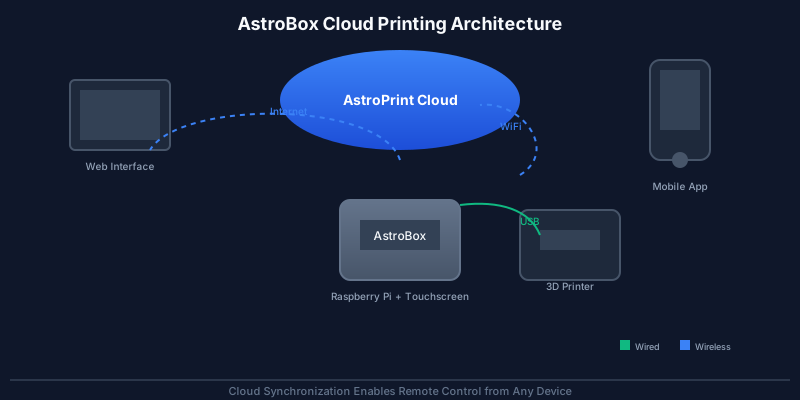
At its core, the AstroBox Touch is a Raspberry Pi-based controller that replaces your printer’s stock display and interface. Housed in a sleek enclosure with a 3.5-inch capacitive touchscreen, it runs custom AstroPrint software that bridges your 3D printer to the cloud.
Hardware Highlights:
– 3.5-inch touchscreen display (capacitive, responsive)
– Powered by Raspberry Pi (originally Pi 2, later Pi 3)
– USB connection to your printer
– Built-in WiFi for cloud connectivity
– Compact enclosure that mounts like a standard display
Software & Ecosystem:
– AstroBox OS: Modified Raspberry Pi OS with print server and web interface
– Cloud Platform: Files stored online, accessible anywhere
– Web Interface: Responsive browser-based control panel
– Mobile Apps: iOS and Android for on-the-go monitoring
– App Marketplace: Third-party extensions and tools
The Touch is designed to be plug-and-play. According to AstroPrint, you can go from unboxing to printing wirelessly in under 5 minutes, no Linux expertise required.
Key Features That Matter
1. Wireless Control, No SD Cards Needed
This is the big one. With AstroBox Touch, you upload your .gcode or .stl files to the cloud, then slice and start prints directly from the touchscreen or your phone. No more formatting SD cards, dealing with card readers, or losing files in transit.
2. Cloud-Based Slicing
The web-based slicer lets you prepare prints from any browser. Upload an STL, adjust supports, layer height, infill, and material settings, then generate G-code on the fly. Your slicing profiles sync across devices, so your favorite settings are always available.
3. Real-Time Remote Monitoring
Add a USB webcam to your printer and you can:
– Watch live video of your prints
– Take snapshots and timelapses
– Get push notifications when prints complete or fail
– Check progress from anywhere with internet
This feature alone saves countless failed prints caused by ignoring early warning signs.
4. Mobile App Integration
The AstroPrint mobile apps (free on iOS and Android) turn your phone into a full-feature print manager. Start, pause, stop prints; adjust speeds on the fly; view progress bars and estimated completion times.

5. App Marketplace – Extensibility
Here’s where AstroBox Touch truly stands out. Unlike closed-source printer firmware, the Touch is “infinitely extensible with apps” through the AstroPrint marketplace. Developers can create tools that:
– Add new slicer settings
– Integrate with cloud storage services
– Provide advanced print analytics
– Connect to social platforms for sharing
Your Touch becomes a customized reflection of your workflow.
6. Multi-Printer Support
If you run multiple printers, the AstroPrint platform can manage them all from a single dashboard. Each printer gets its own status and queue, making it easy to coordinate production runs or monitor a farm of machines.
Setup and Installation: Truly Plug-and-Play
AstroPrint promises setup in under 5 minutes, and for most users, that’s accurate:
Step 1: Physical Installation
– Mount the Touch where your printer’s original screen was (or nearby)
– Connect USB cable from Touch to your printer’s USB port
– Power on the Raspberry Pi inside (standard micro-USB power)
Step 2: Connect to WiFi
– Using the touchscreen interface, select your WiFi network and enter credentials
– The device registers itself with AstroPrint’s cloud
Step 3: Register Your Printer
– The software auto-detects your printer model and firmware (Marlin, Repetier, or Sailfish)
– If it’s a new registration, you may need to confirm a few settings
Step 4: Start Printing
– Upload files via web, mobile app, or USB drive
– Slice or use pre-sliced G-code
– Tap “Print” and watch it go
For detailed calibration procedures once your printer is set up, consult our
Ultimate Calibration Guide.

Compatibility: Which Printers Work?
AstroBox Touch supports approximately 80% of 3D printers on the market, according to AstroPrint. The requirement is that your printer runs standard Repetier, Marlin, or Sailfish firmware and has a USB host port.
Officially Supported Brands Include:
– Prusa (all i3 models, Mini, MK series)
– Creality (Ender 3 series, CR series, CR-10, Ender 5, K1 series)
– Anycubic (Kobra series, Vyper, Chiron)
– Elegoo (Neptune series)
– Bambu Lab (most models via Bambu Studio compatibility)
– Flashforge (Adventurer series, Creator models)
– Sovol (SV06, SV06+)
– Qidi (Q2, X-Max)
– Snapmaker (original and 2.0)
– And many more…
If your printer uses a common firmware and speaks standard G-code over USB, there’s a good chance it will work. AstroPrint maintains a compatibility list on their website, and the community has collectively verified hundreds of models.
Benefits for Makers: Why Choose AstroBox Touch?
For Beginners
If you’re new to 3D printing, the Touch removes the biggest hurdle: getting files from computer to printer. No more SD card dance, no wondering why your printer isn’t reading the file. It just works.
The cloud-based workflow also means you can set up prints from your phone while you’re out and about. Come home to a freshly printed part.
For Enthusiasts
Advanced users appreciate:
– Remote monitoring: Watch prints from another room, or while at work
– Snapshot timelapses: Create beautiful progress videos automatically
– Queue management: Load multiple jobs and let the printer work through them
– Mobile control: Adjust speeds, temperatures, or cancel from your pocket
– App ecosystem: Extend functionality without hacking your printer’s firmware
For Makerspaces
In shared environments, the Touch standardizes the interface and removes the need to manage SD card libraries. Members can upload files from any device and start printing with minimal training. Cloud storage also means no one loses their files.
Alternatives: How Does It Compare?
vs OctoPrint
OctoPrint is the open-source darling of the 3D printing world, a free, self-hosted print server that runs on a Raspberry Pi. Many makers swear by it.
AstroBox Touch Advantages:
– Turnkey solution (no DIY setup)
– Built-in touchscreen (OctoPrint needs separate display)
– Official mobile apps (OctoPrint requires third-party apps)
– Cloud sync out of the box (OctoPrint needs plugins and port forwarding)
– App marketplace for extensions
OctoPrint Advantages:
– Free and open-source (Touch is proprietary)
– Highly customizable if you’re willing to tinker
– Larger community of plugin developers
– No ongoing subscription fees (AstroPrint cloud has free tier, but PRO features cost money)
Bottom Line: If you want hassle-free setup and a polished experience, AstroBox Touch wins. If you’re a tinkerer who wants total control and zero vendor lock-in, OctoPrint is the way.
vs Standalone Touchscreen Controllers
Some printers (like the Prusa Mini and Bambu Lab X1) come with built-in touchscreens. These are excellent but tied to their ecosystem.
AstroBox Touch retrofits this smart display experience to older printers or non-touch models, making it a great upgrade for machines that lack modern UI.
vs Traditional LCD + SD Card
The obvious comparison: AstroBox Touch eliminates the need for SD cards entirely. That’s enough of a quality-of-life improvement that many users consider it worth the cost alone.
Pricing and Availability: Is It Still Available?
AstroBox Touch launched on Kickstarter in 2017 with early-bird pricing at $100 (included Raspberry Pi 3, SD card, pre-flashed software). The planned MSRP was $199.
Current Status (2025):
The product appears to be in a transitional state. The official AstroPrint store has had intermittent availability, and some community reports suggest the pre-assembled Touch may be sold out or discontinued.
However, the software is still alive and well:
– The AstroBox Gateway software remains available for free download
– You can build your own AstroBox Touch using a Raspberry Pi, touchscreen, and the AstroPrint software image
– GitHub repository is active (AGPL v3 license)
– Community forums still see activity in 2025 with users asking for help
If you want an AstroBox Touch today, your options are:
- Build your own using a Raspberry Pi 3+ and 3.5-inch touchscreen ($50–$80 in parts) plus free software
- Look for used units on eBay or maker marketplaces (prices vary)
- Consider AstroBox Gateway (simpler, non-touch version with cloud connectivity)
- Explore alternatives like OctoPrint with a touchscreen add-on
Recommended: If you’re comfortable with basic hardware assembly, the DIY route gives you the same functionality at lower cost. The software experience is identical.
Who Is the AstroBox Touch For?
✅ Perfect For:
– Beginner 3D printing enthusiasts who want a seamless, cloud-connected experience
– Makers with older printers lacking modern UI features
– Teachers and makerspaces seeking a standardized, easy-to-use solution
– Power users who want remote monitoring and queue management
– Anyone frustrated by SD cards and USB cable runs
❌ Maybe Not For:
– Hardcore tinkerers who prefer open-source, self-hosted tools (OctoPrint)
– Budget-conscious builders who can DIY a Pi solution for less
– Users with unreliable internet (cloud features require connectivity)
– Those who want full offline control (AstroPrint relies on cloud for key features)
Verdict: A Solid Cloud Printing Solution
The AstroBox Touch remains a compelling option for makers who prioritize convenience over complete control. Its cloud-first approach eliminates the friction of file transfers, remote monitoring is excellent, and the mobile app experience is smooth.
While the hardware availability is uncertain in 2025, the software platform is very much alive. Building your own AstroBox from a Raspberry Pi is straightforward and delivers the same core experience.
Pros:
– Truly plug-and-play setup
– Excellent cloud integration and mobile apps
– App marketplace for extensibility
– Multi-printer support
– Professional, user-friendly interface
Cons:
– Proprietary cloud dependency
– Some features require internet
– Hardware availability is spotty
– Long-term viability uncertain (small company)
Final Recommendation: If you can get your hands on an AstroBox Touch, or build one yourself, it’s a worthwhile upgrade that modernizes any compatible 3D printer. Just be aware you’re buying into AstroPrint’s ecosystem, and their continued operation is key to the full experience.
For those who prefer open-source independence, OctoPrint remains the gold standard. But for makers who just want things to work beautifully without the hassle, AstroBox Touch is still a winner.
Get Started
Ready to try? Here’s how to get an AstroBox Touch:
- DIY Route (Recommended):
- Raspberry Pi 3 or 4 ($35–$55)
- 3.5-inch touchscreen display ($25–$40)
- microSD card + power supply ($10–$15)
- Download software: AstroPrint Downloads
- Used Market: Search eBay, Facebook Marketplace, or r/3Dprintswap for “AstroBox Touch”
- Gateway Alternative: The simpler, non-touch AstroBox Gateway provides cloud connectivity at lower cost
Once set up, you’ll wonder how you ever lived without wireless 3D printing. Happy printing!
Have you used an AstroBox Touch? Share your experience in the comments below!
Related Resources
For additional information on related topics:
- Bambu Lab X1C Review – Compare with another premium cloud-connected printer.
- Ultimate Calibration Guide – Ensure your printer is properly tuned.
- Cura 5.11.0 Released – Popular slicing software with cloud printing features.
External references:
- OctoPrint – Open-source alternative.
- AstroPrint Downloads – Official software.
- AstroBox GitHub Repository – Source code and community contributions.
- Raspberry Pi Documentation – For DIY builds.
Frequently Asked Questions
What is the best 3D printing filament for beginners?
PLA is the best starting filament — it prints easily at 190-220°C without an enclosure and produces good results. Once comfortable, PETG offers better strength and temperature resistance for functional parts.
How do I choose the right filament?
Consider the application: PLA for display models, PETG for functional parts, ABS/ASA for heat/sunlight exposure, TPU for flexible parts, and specialty filaments for engineering applications. Each has specific printer requirements.
What temperature should I print different filaments at?
PLA: 190-220°C nozzle / 50-60°C bed. PETG: 220-250°C / 70-80°C. ABS: 230-260°C / 100-110°C (enclosure needed). Nylon: 240-270°C / 70-90°C. Always check manufacturer recommendations for specific brands.
📌 Related Articles
- Creality Creality Ender 3 V3 Plus vs Creality Ender 3 Pro: Full Specs Comparison & Buyer’s Guide
- Best 3D Printer Upgrades That Actually Improve Print Quality: Complete 2026 Guide
- Bambu Lab A1 vs Elegoo Centauri Carbon: Full Specs Comparison & Buyer’s Guide
- Prusa Research Mini+ vs Prusa MK4: Full Specs Comparison & Buyer’s Guide
- Best Budget 3D Printer Upgrades That Actually Improve Print Quality: Belts, Springs, Hotends & More