
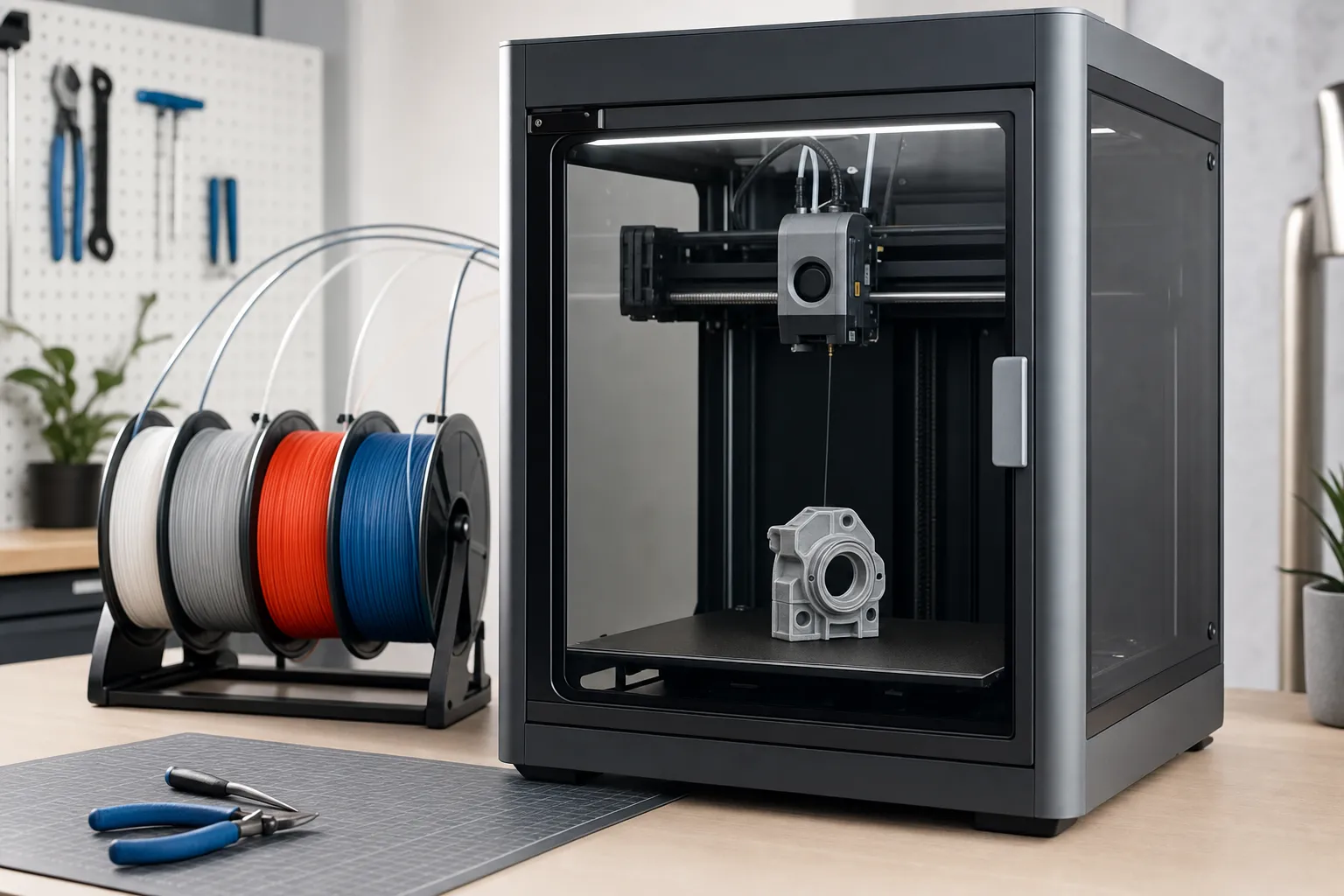
3D Printing Overhangs and Bridges: Complete Settings and Techniques Guide
One of the most frustrating challenges in FDM 3D printing is dealing with overhangs and bridges. You design a perfect part, hit print, and end up with droopy, stringy messes where the printer tried to extrude plastic into thin air. The good news? With the right settings and techniques, you can consistently produce clean overhangs up to 70 degrees and bridges spanning 100mm or more.
In this comprehensive guide, we will break down exactly what causes failed overhangs and bridges, the slicer settings that make the biggest difference, and advanced techniques that pros use to push the limits of what their printers can do.
Understanding Overhangs and Bridges
What Is an Overhang?
An overhang is any section of a print where material is deposited beyond the edge of the layer below it. When you print at a 45-degree angle, each layer extends about half a nozzle width beyond the previous one. At 60 degrees, the extension grows significantly. Beyond 70 degrees, you are asking molten plastic to stick to almost nothing.
The fundamental problem is gravity. Molten filament has no structural integrity until it cools and solidifies. When there is nothing underneath to support it, the filament sags, curls, or falls entirely.
What Is a Bridge?
A bridge is a special case of an overhang where the printer must extrude filament between two raised points with nothing in between. Think of printing the top of an arch or the ceiling of a hollow box. The printer must stretch a strand of molten plastic across a gap and hope it connects cleanly to both sides.
Bridging is arguably harder than angled overhangs because the entire length of filament is unsupported. However, modern slicers have dedicated bridge settings that can produce remarkably clean results when configured correctly.
The Science Behind Successful Overhangs
Three physical factors determine whether an overhang succeeds or fails:
- Cooling rate: How quickly the filament solidifies after extrusion. Faster cooling means less sagging.
- Surface adhesion: How well the new layer bonds to the existing geometry. More contact area means better results.
- Extrusion consistency: How precisely the printer delivers the right amount of filament. Over-extrusion makes overhangs worse.
Every setting we will discuss addresses one or more of these factors. Understanding this connection helps you troubleshoot problems logically rather than randomly tweaking values.
Critical Slicer Settings for Overhangs
1. Cooling (Part Cooling Fan)
Cooling is the single most important factor for overhang quality. When you increase part cooling, the filament solidifies faster, reducing sag. For most materials:
- PLA: 100% fan speed for overhangs. PLA benefits from aggressive cooling.
- PETG: 50-80% fan for overhangs. Too much cooling weakens layer adhesion.
- ABS/ASA: Minimal or no cooling. These materials warp badly with cooling fans.
- TPU: 30-60% fan. Flexible filament needs moderate cooling.
Most modern slicers like Cura, PrusaSlicer, and Orca Slicer automatically increase cooling for overhangs above a configurable threshold. Make sure this feature is enabled and set the threshold to around 45 degrees.
2. Print Speed
Slower print speeds give the filament more time to bond with the layer below before gravity pulls it down. For difficult overhangs:
- Reduce external wall speed to 50-70% of normal
- Slow down overhang perimeters to 15-25 mm/s
- Enable “slow down for overhangs” in your slicer
Orca Slicer and PrusaSlicer both have a dedicated “overhang speed” setting. Set this to progressively slower speeds as the overhang angle increases. A good starting point is 60% of normal speed at 45 degrees, 40% at 60 degrees, and 20% at 75+ degrees.
3. Layer Height
Thinner layers mean less material per layer, which means less weight pulling the overhang down. For critical overhang sections:
- Use 0.12-0.16mm layer height instead of 0.20mm
- Adaptive layer height (available in Cura and Orca Slicer) automatically reduces layer height for angled surfaces
- The trade-off is longer print times, but the quality improvement is substantial
A good rule of thumb: if your overhang angle exceeds 55 degrees, reduce your layer height to 0.16mm or below. The relationship is roughly linear — halving the layer height lets you print about 5-10 degrees steeper before quality degrades.
4. Line Width
Extruding slightly less material on overhang walls can improve results. Try reducing the external perimeter width to 90-95% of the nozzle diameter. For a 0.4mm nozzle, use a 0.36-0.38mm line width for overhang perimeters.
This works because thinner lines have less mass, cool faster, and are easier for the fan to solidify before they sag. Some slicers do this automatically when you enable overhang-specific settings.
5. Extrusion Multiplier
Slightly reducing flow rate for overhangs prevents bulging and sagging. Set the extrusion multiplier to 90-95% for external perimeters on steep overhangs. Be careful not to reduce it too much or you will get under-extrusion and weak parts.
If you need reliable flow calibration tools, a digital caliper and a test print are all you need to dial this in precisely.
Bridge-Specific Settings
Bridge Speed
Bridging requires a different approach than angled overhangs. The key is to move fast enough that the filament is stretched taut across the gap, but not so fast that it breaks. Recommended bridge speeds:
- PLA: 20-30 mm/s
- PETG: 15-25 mm/s
- ABS: 10-20 mm/s
Start at 25 mm/s and adjust based on results. If you see sagging, increase speed slightly. If the filament breaks or does not connect, slow down.
Bridge Flow Ratio
Most slicers have a dedicated bridge flow setting. This reduces the amount of filament extruded during bridges to prevent the excess material from sagging. A value of 0.8-0.95 works well for most materials. Start at 0.9 and adjust.
Bridge Fan Settings
For bridging, maximum cooling is almost always correct. Set the fan to 100% for bridge layers regardless of material (except ABS/ASA where you should keep it at 30% or below to prevent warping). The rapid cooling helps the bridge solidify before it can sag.
Bridge Density and Pattern
Your slicer may offer bridge infill pattern options. A concentric pattern often produces the cleanest bridges because the loops gradually decrease in size, providing a stable base for subsequent layers. Some slicers also offer the option to increase the number of bridge skin passes, which can improve results on wider bridges.
Support Structures: When Settings Are Not Enough
Sometimes no amount of tuning will save an overhang. For angles beyond 75 degrees or bridges longer than your printer can handle, support structures are the answer. Modern slicers offer several support types:
Tree Supports (Organic Supports)
Tree supports, also called organic supports in PrusaSlicer, grow upward from the build plate like tree branches, touching the overhang only at the points where support is needed. Benefits include:
- Less material usage (often 30-50% less than standard supports)
- Easier removal with less scarring on the finished print
- Less contact area means better surface finish on supported areas
Tree supports are the best default choice for most prints. Enable them in Cura as “Tree Support” or in PrusaSlicer as “Organic Supports.” For the best results with minimal post-processing, pair tree supports with a good support interface material.
Normal (Linear) Supports
Traditional grid-based supports are straightforward and reliable. They work well for flat-bottomed overhangs where the support roof will leave a consistent surface. Use normal supports when:
- The overhang has a flat underside
- You need maximum support strength
- Tree supports would interfere with other parts of the model
Support Interface Layers
Regardless of support type, always enable support interface layers. These are dense layers between the support and the model that create a clean, flat surface. Settings to use:
- Interface layers: 2-3
- Interface spacing: 0.2-0.3mm
- Interface pattern: concentric
Support interface layers dramatically improve the quality of supported surfaces and make supports much easier to remove cleanly.
Material-Specific Overhang Guidelines
PLA
PLA is the most forgiving material for overhangs due to its low printing temperature and excellent response to cooling. With proper settings, you can achieve:
- 45-degree overhangs: Excellent quality with default settings
- 60-degree overhangs: Good quality with enhanced cooling
- 70-75 degree overhangs: Acceptable quality with optimized settings
- Bridges: Up to 80-100mm with good technique
For the best results with PLA overhangs, check out these premium PLA filaments that have excellent layer adhesion and cooling characteristics.
PETG
PETG is more challenging because it prints hotter and is more sensitive to cooling. Typical performance:
- 45-degree overhangs: Good quality
- 55-60 degree overhangs: Moderate quality with optimized cooling
- 65+ degrees: Expect sagging, use supports
- Bridges: Up to 50-70mm with careful tuning
The key with PETG is balancing cooling. Too little and the overhang sags, too much and layer adhesion suffers. Use 50-70% fan for overhangs and bridge sections specifically.
ABS and ASA
These materials are notoriously difficult for overhangs because they require minimal cooling. Expect:
- 45-degree overhangs: Acceptable to good in an enclosure
- 50-55 degrees: Maximum without supports
- Bridges: 30-50mm at best
An enclosure is mandatory for ABS/ASA overhangs. The ambient heat prevents rapid cooling and warping, which actually helps with overhangs because the material stays semi-molten longer and can conform to the layer geometry. Use a quality enclosure for consistent results.
TPU (Flexible)
Flexible filament is surprisingly decent at overhangs due to its elastic nature. The filament stretches slightly across gaps, which can actually help with bridging:
- 45-55 degree overhangs: Good quality at slow speeds
- 60 degrees: Acceptable with careful tuning
- Bridges: Up to 40-60mm
Print TPU slowly (20-30 mm/s) for the best overhang results.
Advanced Techniques
Variable Layer Height
Both PrusaSlicer and Orca Slicer support variable layer height. This allows you to use thicker layers (0.20mm) for vertical sections and thinner layers (0.10-0.12mm) for overhang areas. The result is the best of both worlds: fast print times and excellent overhang quality.
To use variable layer height effectively, identify the layers where overhangs begin and manually reduce the height for those regions. Some slicers can do this automatically based on the model geometry.
Model Orientation
The simplest way to solve an overhang problem is to eliminate it. Rotate or reorient the model so that overhangs become vertical walls or supported features. Considerations:
- Rotate the model to minimize the total overhang area
- Split the model into parts that can be printed in optimal orientation
- Use cut planes in your slicer to divide complex models
Sometimes adding 5 minutes of design work to split a model saves hours of failed prints and support removal. A reliable cutting tool or putty knife makes assembly seamless.
External Perimeter First
Some slicers offer the option to print external perimeters first. For overhangs, this can be beneficial because the outer wall is deposited before the infill, giving it a moment to cool and solidify before additional material pushes against it. However, this can also reduce dimensional accuracy, so test it on your specific geometry.
Arc Overhang Technique
For extreme overhangs (80+ degrees), some printers can handle gradual arcs by printing concentric circles that slowly expand outward. Each ring provides a small shelf for the next one. This technique works best with PLA at 100% cooling and very slow speeds (10-15 mm/s). It is not reliable for production parts but can be useful for specific geometries.
Troubleshooting Common Overhang Problems
Problem: Droopy, Sagging Overhangs
Cause: Insufficient cooling or print speed too high.
Fix:
- Increase part cooling fan to 100% for overhang layers
- Enable “slow down for overhangs” in your slicer
- Reduce layer height to 0.12-0.16mm
- Check that your cooling duct is properly directed at the nozzle tip
Problem: Curled Up Edges on Overhangs
Cause: Over-extrusion or insufficient cooling causing the filament to curl upward.
Fix:
- Reduce extrusion multiplier to 95%
- Increase cooling fan speed
- Lower printing temperature by 5-10 degrees
- Clean your nozzle — partial clogs cause inconsistent extrusion
Problem: Stringy Bridges
Cause: Bridge settings not optimized.
Fix:
- Increase bridge speed to stretch the filament taut
- Reduce bridge flow to 85-90%
- Set bridge cooling to 100%
- Ensure retraction is properly configured
Problem: Support Scarring
Cause: Support interface too close to the model or wrong support pattern.
Fix:
- Switch to tree/organic supports
- Enable support interface layers (2-3 layers)
- Increase support Z distance to 0.2mm
- Use a different support interface pattern (concentric works well)
Quick Reference Settings Table
Here is a summary of recommended starting settings for overhangs and bridges across common materials:
PLA Overhangs: Fan 100%, Speed 60%, Layer 0.16mm, Flow 95%
PETG Overhangs: Fan 60%, Speed 50%, Layer 0.16mm, Flow 95%
ABS Overhangs: Fan 20%, Speed 50%, Layer 0.14mm, Flow 95% (enclosure required)
PLA Bridges: Fan 100%, Speed 25mm/s, Flow 90%, Max span 100mm
PETG Bridges: Fan 70%, Speed 20mm/s, Flow 88%, Max span 60mm
Recommended Hardware Upgrades
If you find yourself constantly struggling with overhangs despite optimized settings, a few hardware upgrades can make a significant difference:
- Better part cooling fan: The stock fans on many budget printers are inadequate. A dual-fan or high-flow duct design can dramatically improve overhang quality. Look into these part cooling fan upgrades.
- Quality hotend: A good hotend like a Micro Swiss or E3D V6 provides more consistent extrusion, which directly impacts overhang quality.
- Enclosure: Essential for ABS/ASA and helpful for PETG. It maintains consistent ambient temperature and prevents drafts that cause uneven cooling.
Conclusion
Mastering overhangs and bridges in 3D printing is a combination of understanding the physics, configuring your slicer correctly, and knowing when to use supports. Start with the material-specific settings in this guide, run test prints with overhang towers and bridge calibration models, and fine-tune from there.
The most impactful changes, in order of importance, are: cooling fan optimization, print speed reduction for overhangs, layer height reduction, and proper bridge settings. Hardware upgrades like improved part cooling should come after you have exhausted software-based solutions.
With practice and the right settings, you will be printing clean 70-degree overhangs and 100mm bridges consistently. Happy printing!